The SQL IDE for Oracle Fusion Cloud.
Access, query, and validate your Fusion HCM, ERP and SCM data from a single, secure workspace. No middleware. No workarounds.
100% free, forever — no credit card required. A password is emailed to you and refreshes every Monday.
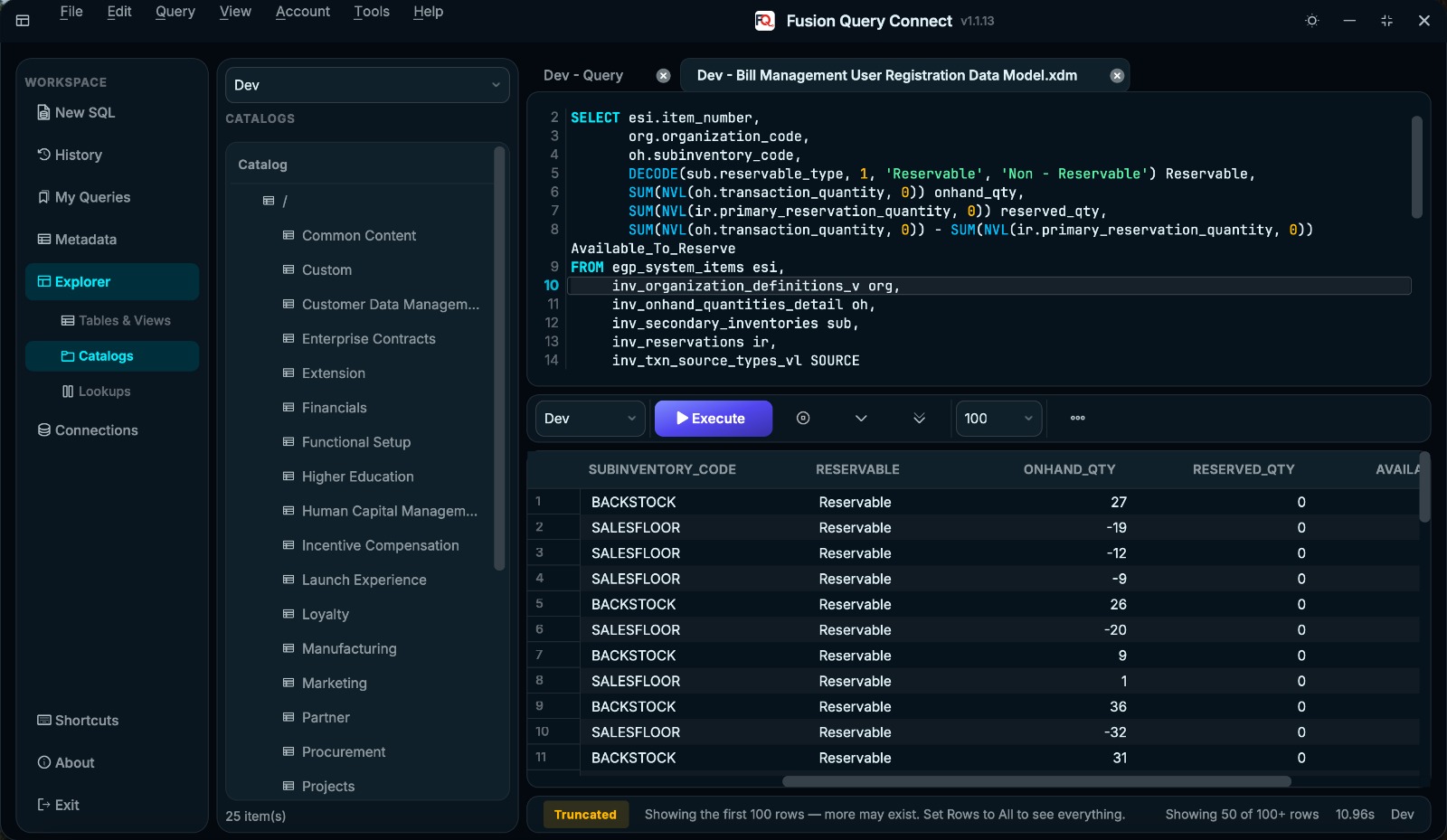
Secured with a password lock
The app stays locked until you enter the passwordA start screen asks for this week's password before anyone can open the tool.
- Enter the current password and choose Unlock to open the application.
- Choose Cancel to close the app without unlocking it.
- Use the Get password link if you do not have the current password.
- The prompt asks for this week's password, so access is refreshed regularly.
Why it helpsThe tool connects to business data, so it should not open for just anyone. The password lock adds a first layer of protection before any connection or query is available.
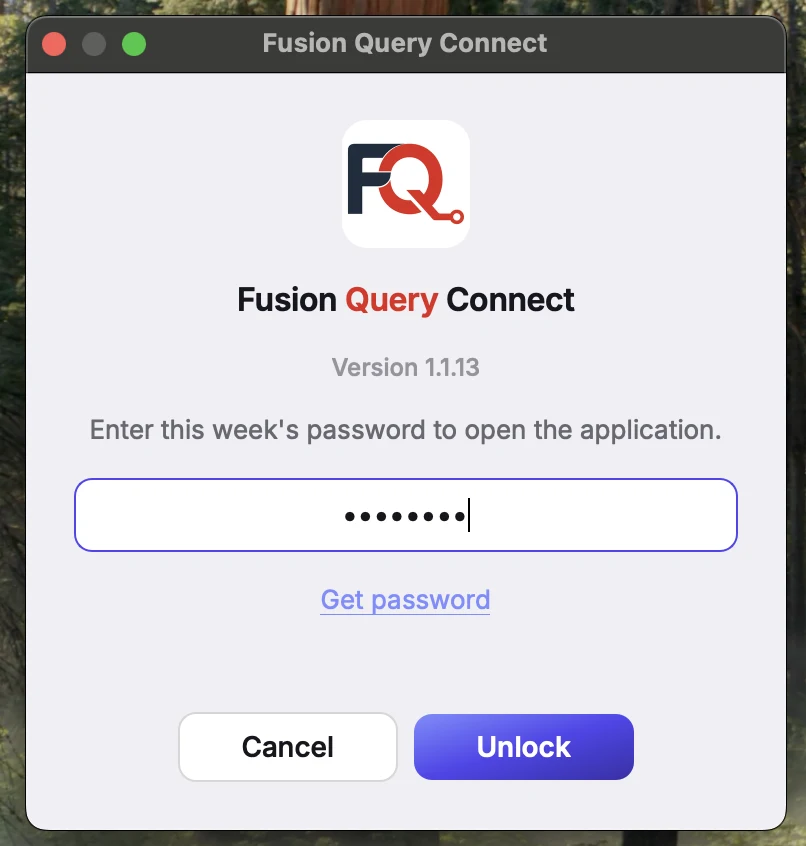
Direct SSO login
Sign in once with your company accountThe tool keeps your SSO token and shows how long it stays valid, so no separate password is needed.
- Choose Password or Single Sign-On (SSO) for each connection.
- Click Sign in to Fusion, then look for the Signed in status.
- See the token expiry time and minutes left before starting long work.
- Keep several connections (such as Dev, Test and Dev SSO), add or remove them with New and Delete, and check each with Test Connection.
Why it helpsMany Fusion pods sign you in through company SSO and protect their web services with an OAuth token. The Connection Manager handles that token for you, so you can connect to Dev or Prod without hand-building requests.
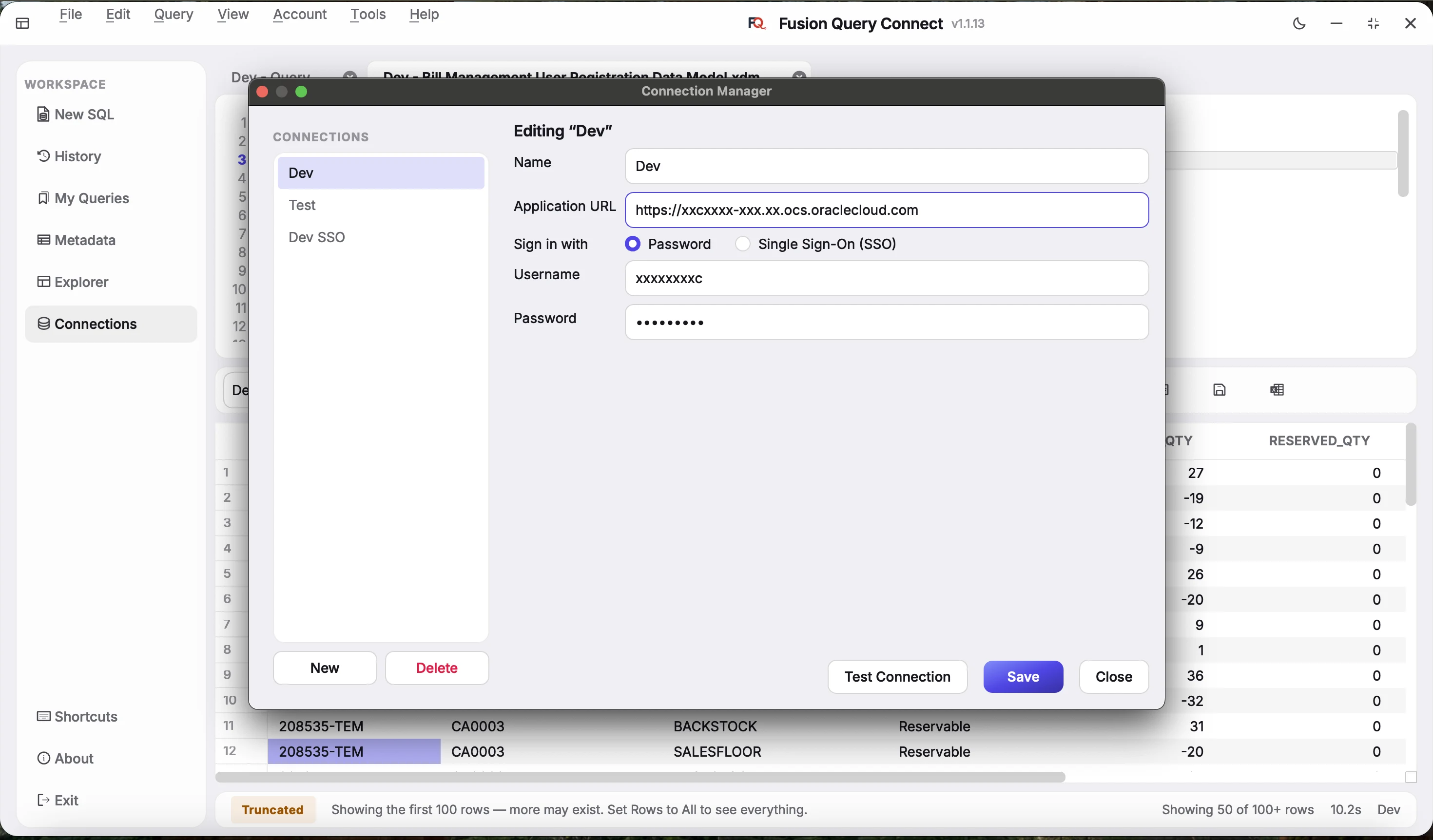
Report catalog browser
Browse the BI Publisher catalog from the side panelOpen any data model or report and its SQL loads into a new editor tab, ready to run.
- Expand folders such as Financials > Bill Management > Data Models.
- Type a folder path to jump straight to a location, then refresh.
- Select a data model or report to load its SQL into the editor.
- Switch between Tables & Views, Catalogs and Lookups under Explorer, with History, My Queries, Metadata and Connections one click away.
Why it helpsExisting reports already contain tested SQL. Browsing the catalog lets you study, reuse and adapt that SQL instead of starting from a blank editor.
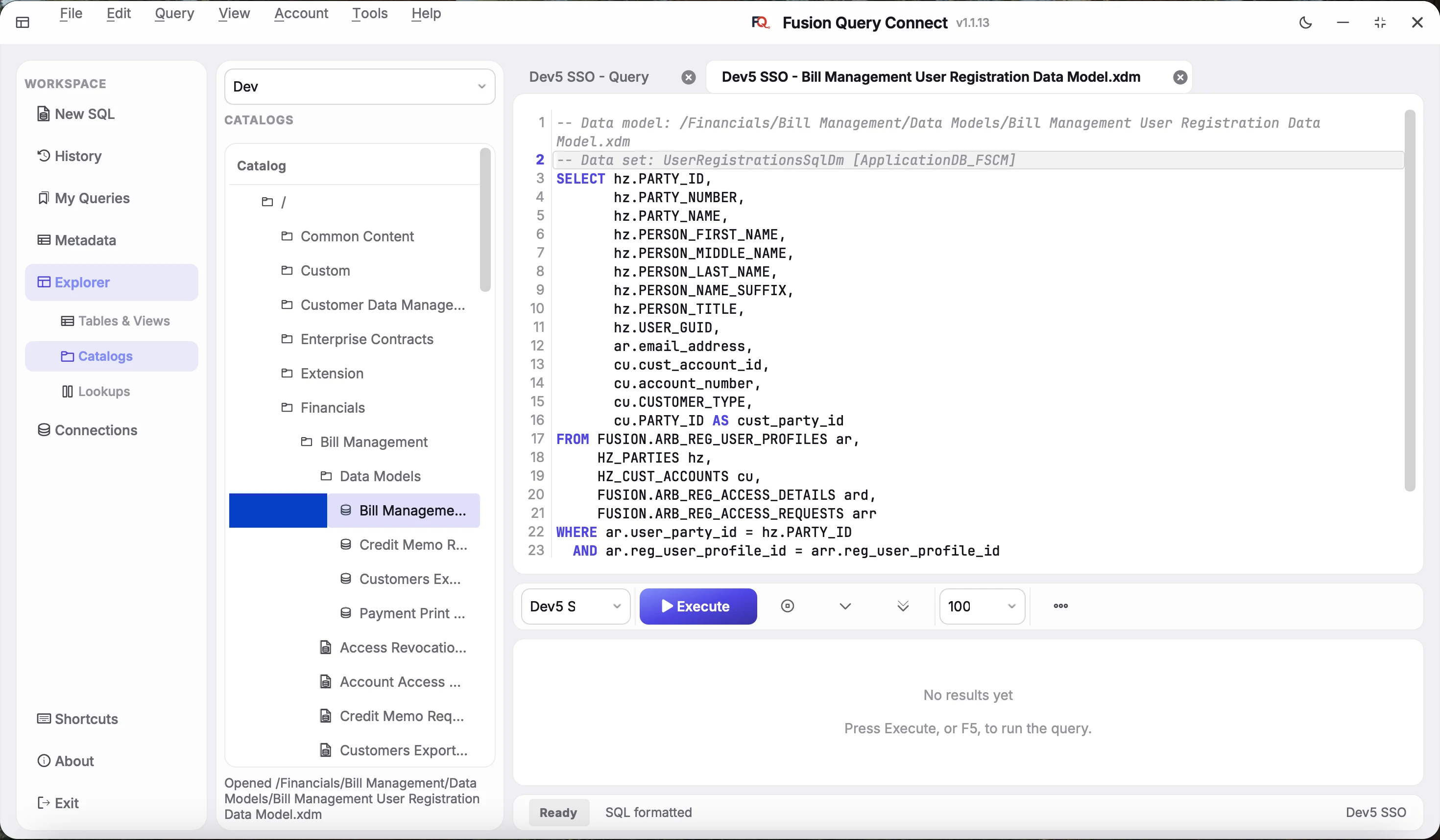
Table and column auto-complete
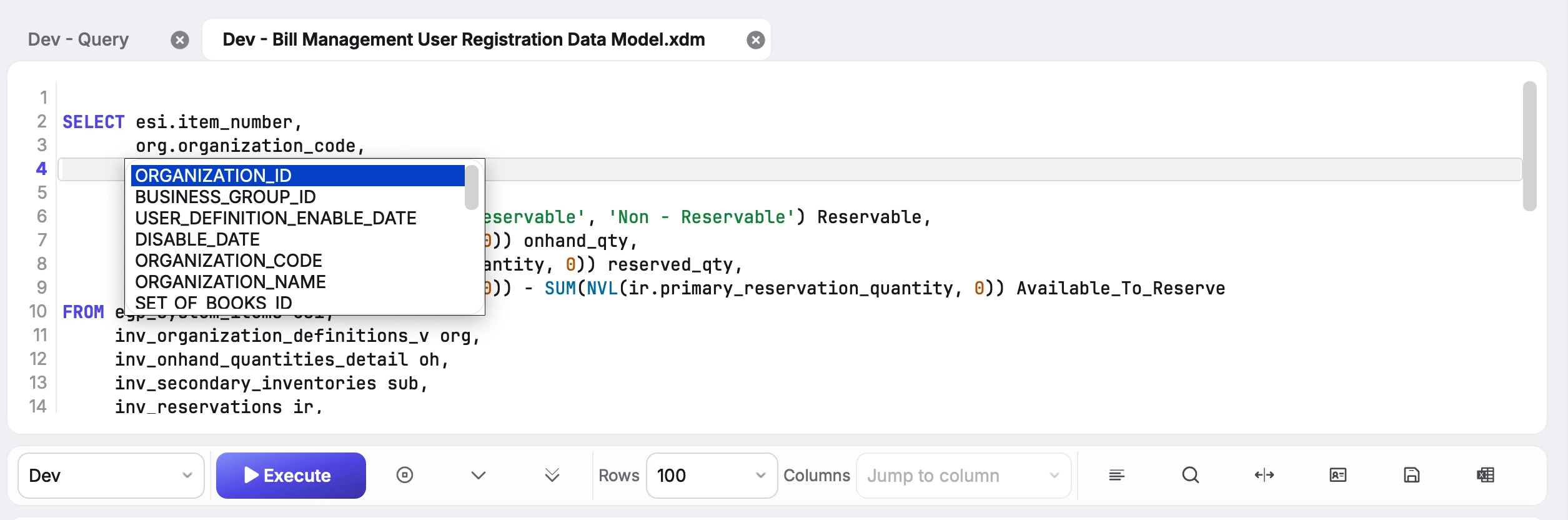
Type an alias and a dot to see its columnsPick the right column name instantly, so you write queries faster with fewer typos.
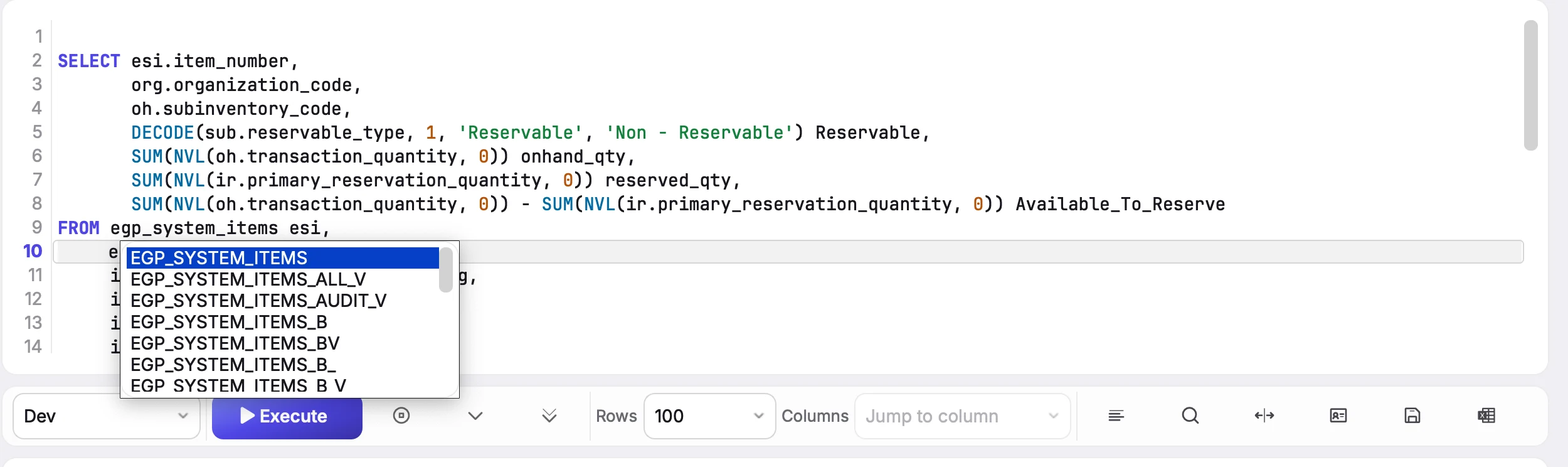
- Get suggestions for table names and for columns of an alias such as org.
- Press Tab or Enter to insert the highlighted column, or Esc to close the list.
- Open suggestions on demand with Ctrl+Space.
- Use Refresh Table/Column Names to load newly available objects.
Why it helpsFusion tables have long lists of similar column names. Auto-complete removes the need to remember them and prevents invalid identifier errors before you run the query.
Exact error highlighting
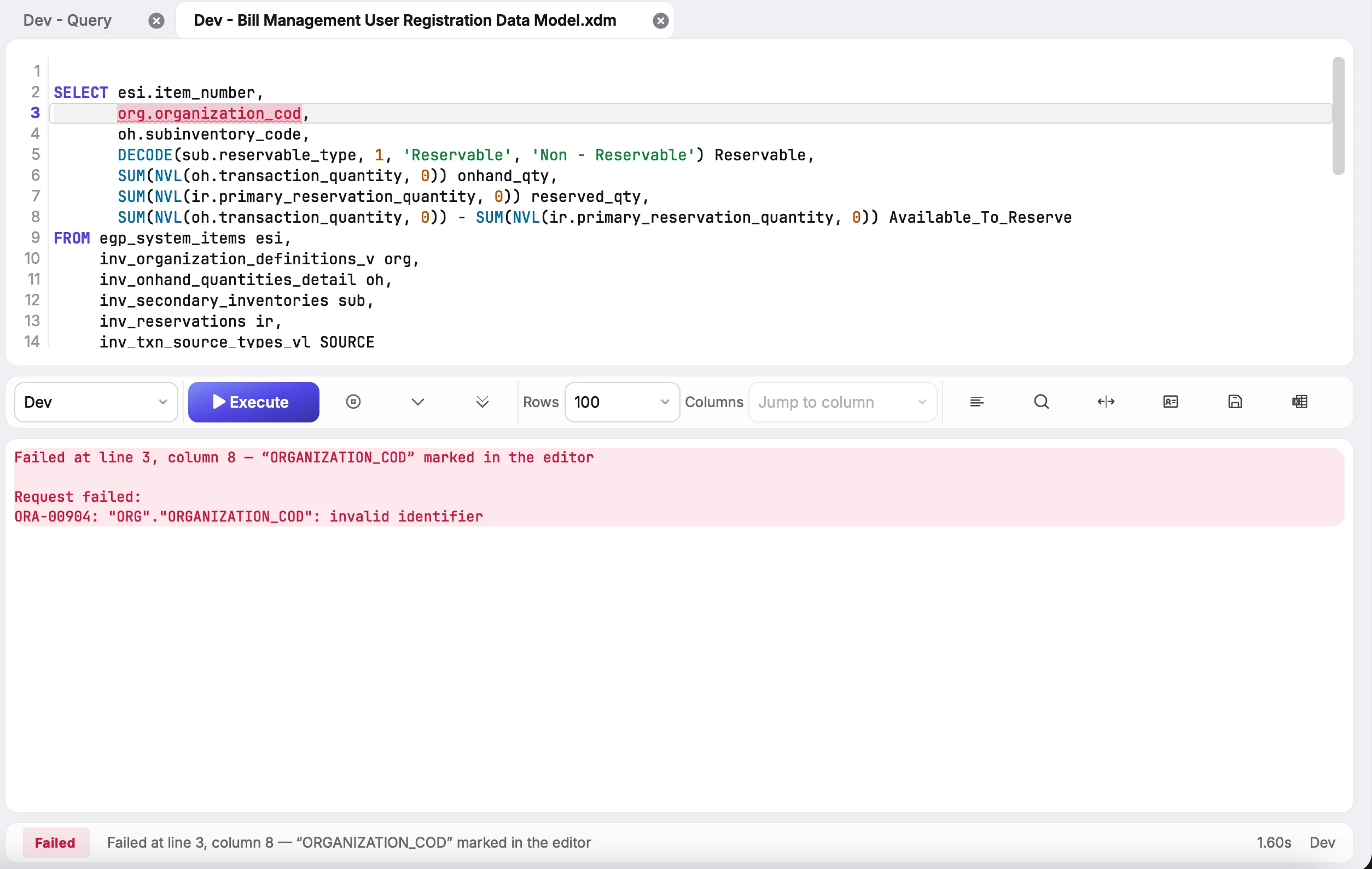
See the Oracle error and the exact spot that caused itThe faulty identifier is underlined in red in your SQL, so you fix it in seconds.
- Read the full message, for example ORA-00904: invalid identifier, in the results panel.
- See exactly where it failed, such as line 3, column 8, in the message and the status bar.
- Spot the misspelled column (org.organization_cod) highlighted on its line.
- Correct the typo in place and run the query again.
Why it helpsA raw Oracle message tells you what is wrong but not where in a long query. Underlining the exact identifier turns a search through hundreds of lines into a single glance.
Metadata search
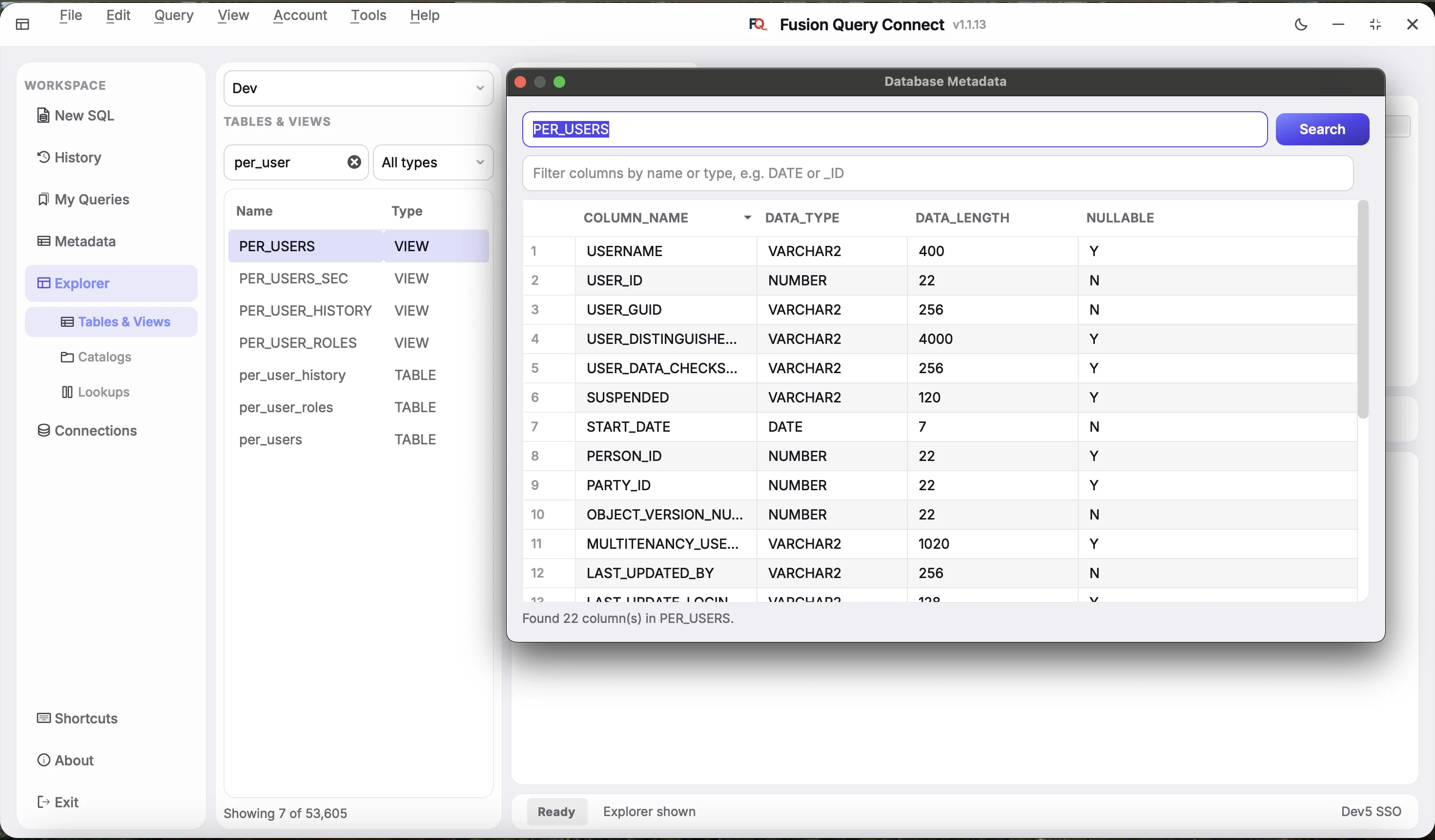
Look up any table structure before you query itFind any table or view by name, then see every column with its data type, length and whether it accepts nulls.
- Type part of a name such as per_user in Tables & Views to search thousands of objects, and narrow by type with All types, Table or View.
- Open a table or view such as PER_USERS to see its columns with data type, length and nullable flag.
- Filter the columns by name or type, for example DATE or _ID.
- Pick which connection to inspect from the list at the top of the panel.
Why it helpsKnowing the shape of a table up front helps you pick the right columns, avoid wrong joins and handle NULLs correctly, without leaving the tool or asking a DBA.
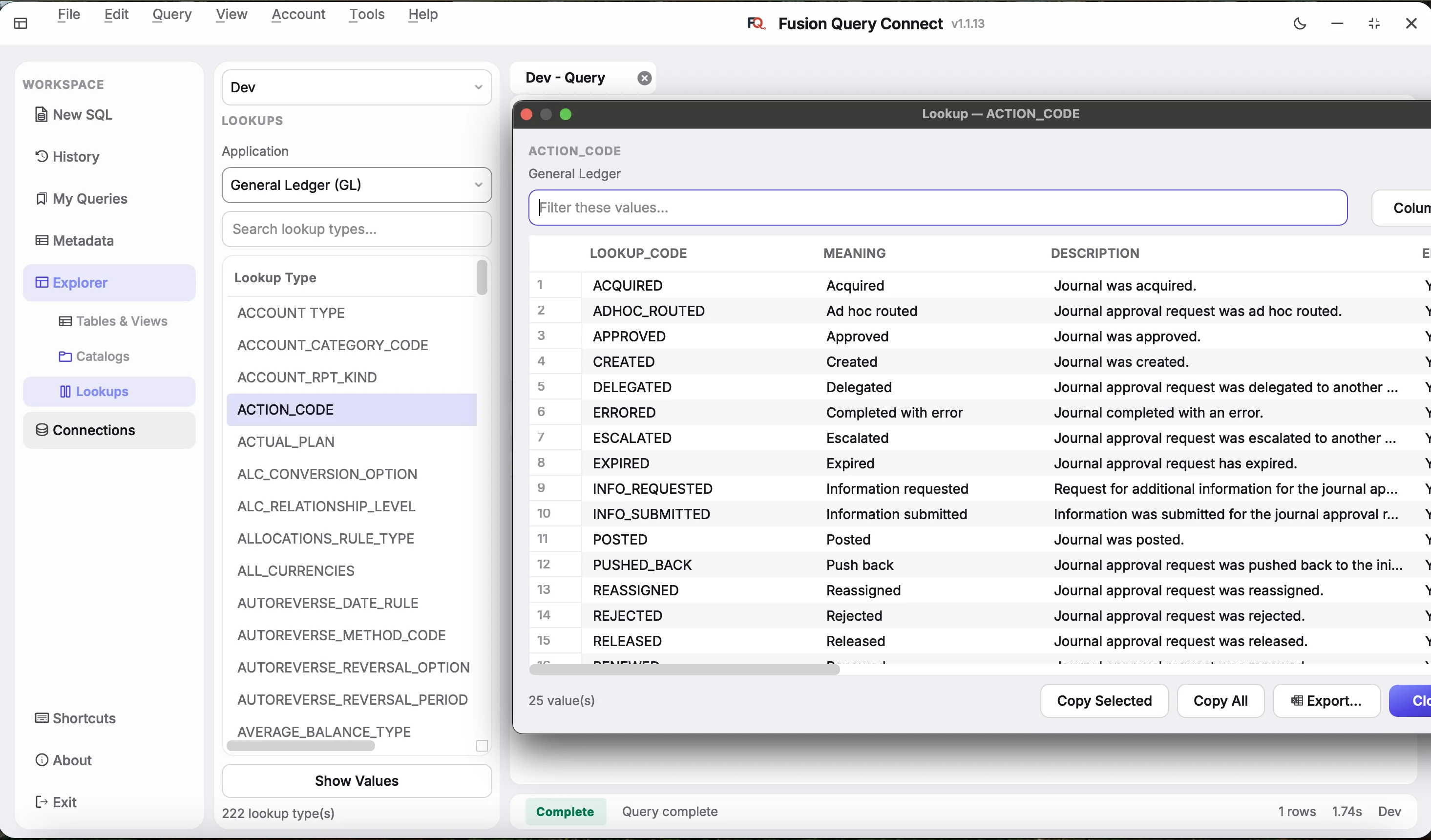
Lookup view
See any module's lookup values in two clicksPick an application, choose a lookup type and select Show Values to see every code, meaning and description.
- Choose an application such as General Ledger (GL) to list its lookup types.
- Search lookup types by name, then select Show Values to open them.
- Filter the values to find a code, meaning or description quickly.
- Copy the selected rows or all values, or export the full list.
Why it helpsFunctional support teams check lookup codes all the time. Seeing them instantly, without writing a query or digging through setup screens, speeds up analysis and answers to users.
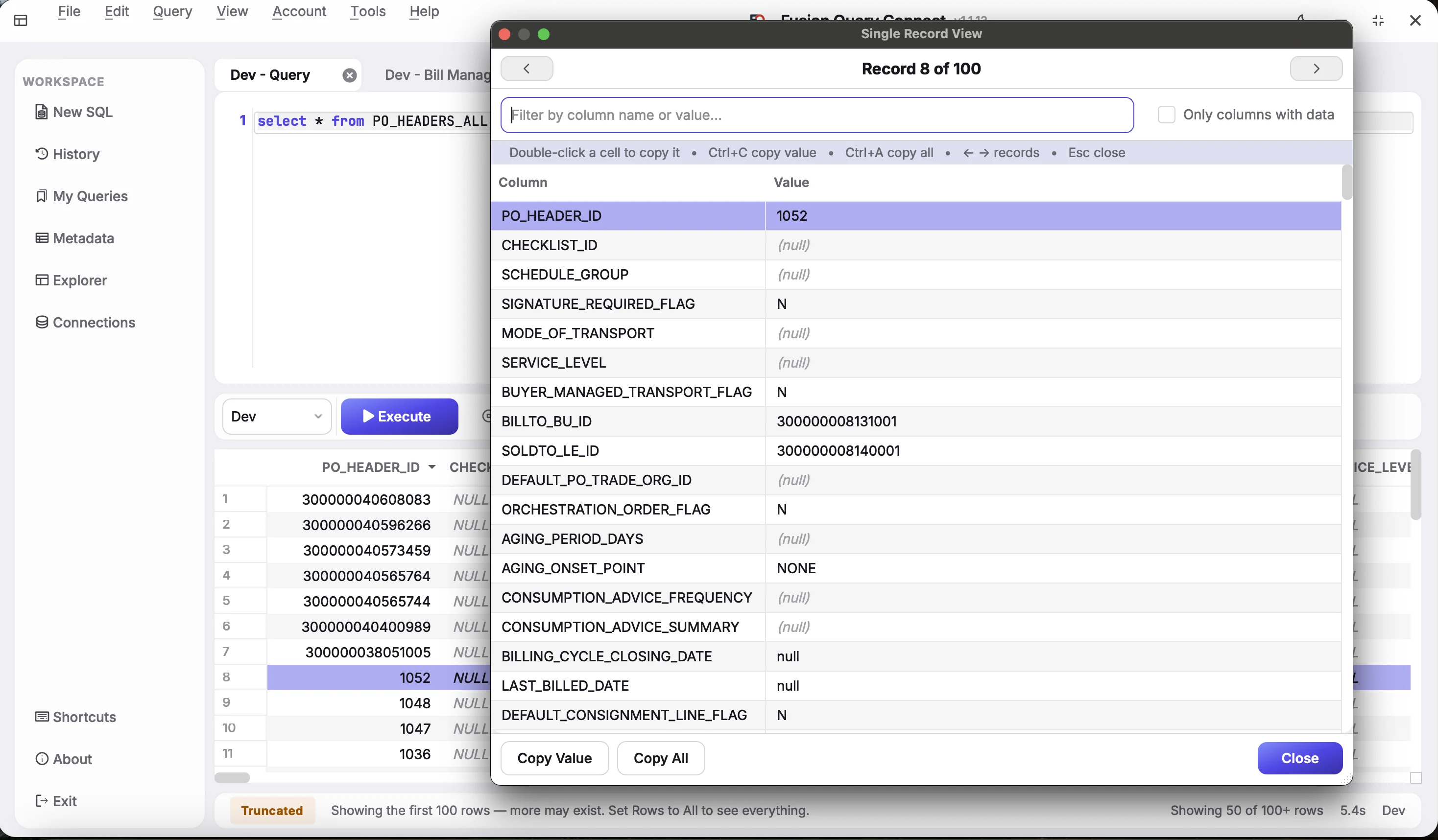
Single record view
Read one result row as a simple Column and Value listWide tables with dozens of columns become easy to scan, search and copy.
- Step through results with the arrow buttons; the header shows your place, such as Record 8 of 100.
- Filter by column name or value, or tick Only columns with data to hide empty ones.
- Double-click a cell to copy its value; Ctrl+C copies a value and Ctrl+A copies all.
- Use Copy Value or Copy All, and press Esc or Close when you are done.
Why it helpsA grid with 38 columns forces endless sideways scrolling. Turning one row on its side lets you inspect a single record fully and copy exactly the value you need.
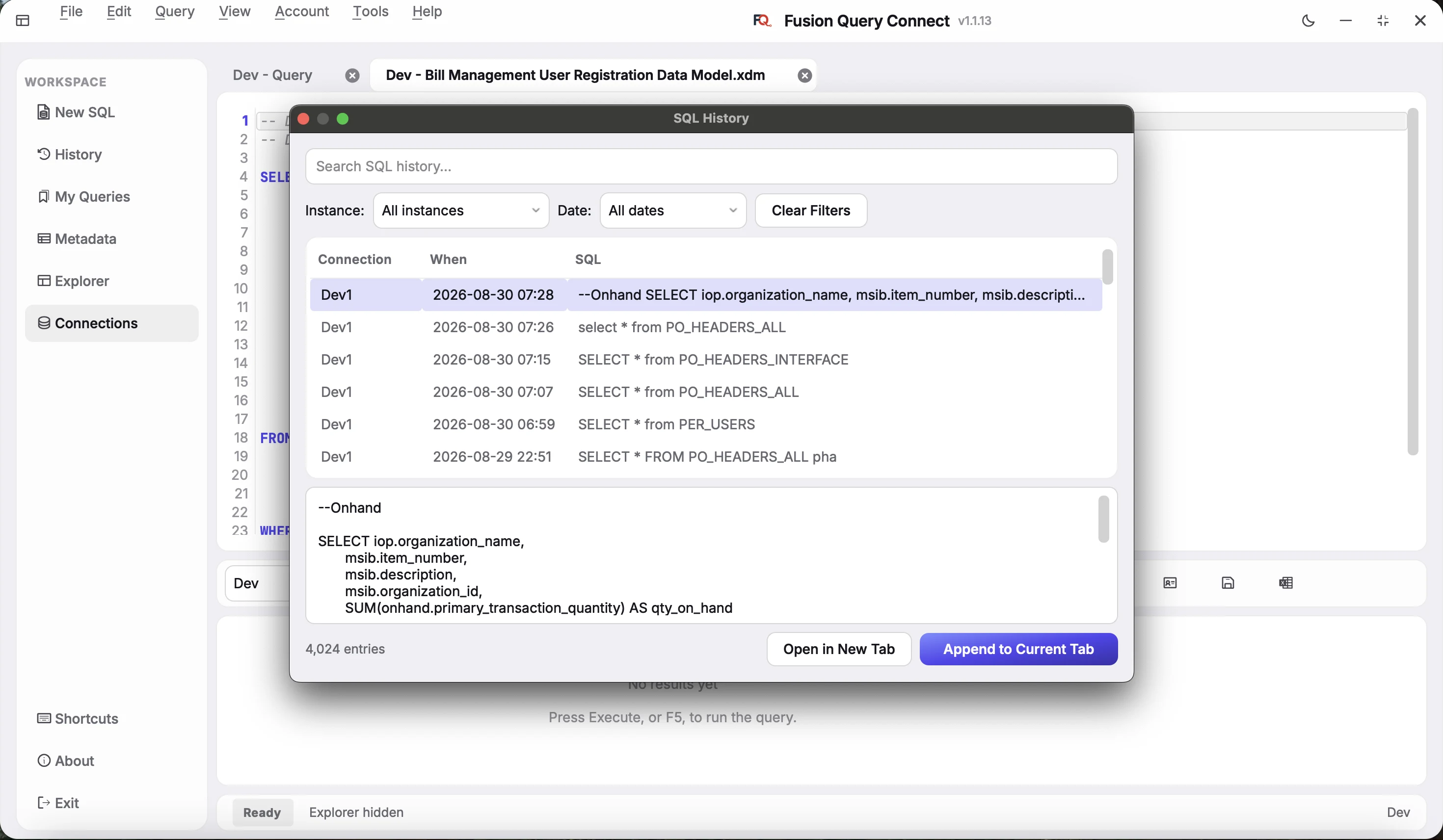
SQL history
Every query you run is saved automaticallySearch by text, filter by instance or date, preview the full SQL and bring it back in one click.
- Search your SQL history, then narrow it with the Instance and Date filters; Clear Filters resets them.
- See the connection and time each query ran, across thousands of entries.
- Read the whole statement in the preview pane below the list.
- Choose Open in New Tab or Append to Current Tab to reuse it.
Why it helpsNobody remembers every query they ran last week. History gives you a searchable log with its environment, so you can recover a good query or check what you ran on Prod.
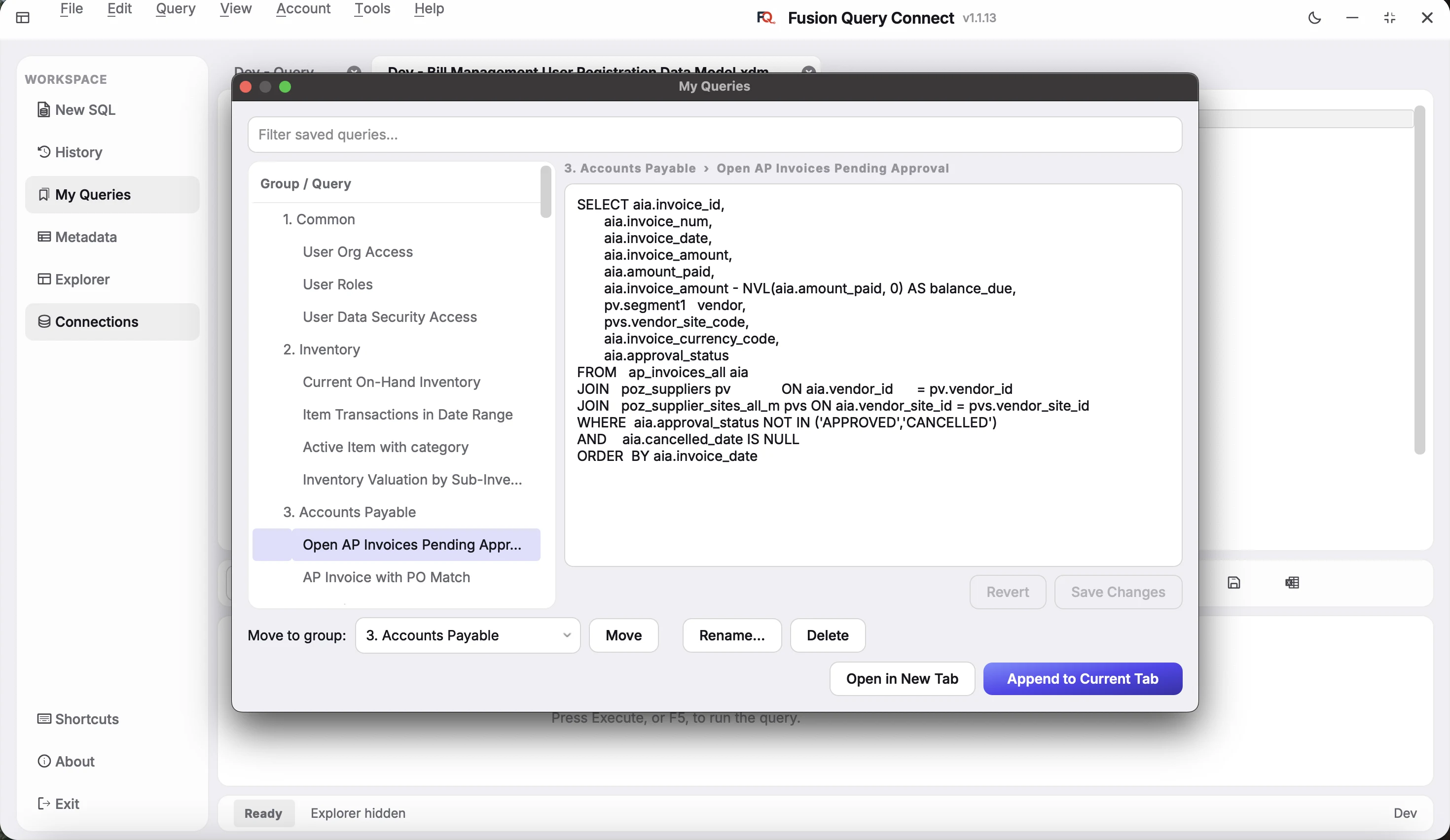
Saved My Queries
Keep your best queries in groups like Common, Inventory and Accounts PayableFilter, preview and load any saved query into the editor with one click.
- Organize queries into groups, and use Move to group, Rename and Delete to keep them tidy.
- Filter across everything you have saved.
- Edit a query in the preview, then Save Changes or Revert.
- Choose Open in New Tab or Append to Current Tab to use it.
Why it helpsReusable queries such as on-hand inventory or AP aging should never be rebuilt from scratch. Grouping them by functional area gives you a personal, searchable query library.
More features
Small touches that make every day easierThoughtful extras that keep your SQL tidy, your results readable and your workspace comfortable.
- SQL formattingTurn a messy statement into clean, consistently laid-out SQL in one click.
- Column auto-alignmentResult columns size themselves to their content, so values are easy to read without dragging borders.
- Friendly date and timestamp formatEvery DATE and TIMESTAMP in your results shows in the custom format you choose, the same way everywhere.
- Restore your last sessionClosed the app with unsaved tabs? Reopen it and pick up exactly where you left off.
- Dark and light themesChoose from multiple dark and light themes for comfortable work, day or night.
Why it helpsSmall time savers add up. Clean SQL, readable results and a workspace that remembers you mean less fiddling and more answers.
Everything you expect from a modern SQL workspace
Whether you're writing a quick lookup against a Fusion pod or working through a 400-line reconciliation script, the tools developers reach for every day are already in the editor.
Full Oracle Fusion coverage
Every Fusion module. Every pod. Every environment.
Fusion HCM
Query PER, HRC, and PAY tables directly.
Fusion ERP
AP, AR, GL, FA, and Projects data.
Fusion SCM
Inventory, Orders, and Procurement.
Fusion CX
Sales, Service, and Marketing objects.
Multi-Pod
Connect Dev, Test, and Prod pods.
BI Publisher
Data source parity with BIP reports.
From download to first row in three steps
No middleware to stand up. No integration project. No ticket sitting in someone else's queue for a fortnight.
Download the package
Click download — no form, no account, no waiting. You get the current release straight away.
Get your password
Enter your email and we send the password that unlocks it. It refreshes every Monday, so come back whenever you need the current one.
Connect to your Fusion pod
Enter your Oracle Fusion Cloud pod URL and credentials to query your HCM, ERP, or SCM data in real time.
Frequently asked questions
Browse by topic or search. Everything teams ask before pointing Fusion Query Connect at their first pod.
01How do I get the download?
Download it straight from this page — no form, no account, no waiting. The package is free and always the current release.
To run it you need a password, which we email you on request. Enter your address on the site and it arrives in a minute; the first time, we also ask your name and company. The password refreshes every Monday, so come back for the current one whenever it stops working.
02What do I need before I connect to my first pod?
Three things:
- Your Fusion Cloud pod URL, in the form
https://your-pod.oraclecloud.com - A Fusion user with BI Publisher data-model access
- A name for the connection, so Dev, Test, and Prod stay straight in the dropdown
If your organisation is connecting for the first time, a Fusion administrator grants the BI Publisher privileges once. After that, everyone on your team connects on their own.
03Where do my credentials, queries, and results actually go?
Everything travels over HTTPS directly between your machine and your pod. There is no middleware server in between.
We do not store your pod URL, your Oracle Cloud credentials, the SQL you run, or the rows that come back. Credentials are held in your operating system's secure store on your own device, and exports are written only where you choose to save them.
04Does Fusion Query Connect work with SSO?
Yes. If your organisation runs Single Sign-On in dual (chooser) mode, you sign in with your Oracle Cloud credentials once per pod and the connection is saved from then on.
Non-SSO pods work exactly the same way. Role-based access, object-level permissions, and audit reporting are all included.
05Can I query Oracle ATP, ADW, EBS, or a standalone database?
No. Fusion Query Connect is built for one job: Oracle Fusion Cloud Applications — HCM, ERP, SCM, and CX. Autonomous databases, on-premise EBS, and third-party databases are outside its scope, and that focus is why the Fusion schema support goes as deep as it does.
06Which Fusion tables will I be able to see?
Whatever your Fusion user is already entitled to through BI Publisher — PER, HRC, and PAY for HCM; AP, AR, GL, FA, and Projects for ERP; inventory, orders, and procurement for SCM; sales, service, and marketing objects for CX.
Fusion Query Connect never widens that boundary. Administrators can narrow it further with object-level permissions.
07How does Intellisense save time on Fusion schemas?
Fusion table and column names are long and easy to mistype. Intellisense suggests them as you type — tables, columns, and aliases already in scope — so you write a join without switching to a schema reference and without hunting a typo through a 40-line statement.
08Can I compare the same query across Dev, Test, and Prod?
Yes — that's what Data Grid Compare does. Run one query against two saved pod connections and it lines the result sets up side by side, flagging rows that only exist on one side and values that differ.
It's the fastest way to catch configuration drift before a migration turns it into a production incident.
09Can I export results and share saved queries?
Export to CSV or Excel any time. Bookmarks let you keep a library of queries organised by pod, and Git integration means a shared query library can be versioned and reviewed like the rest of your code.
10It's really free — so what's the catch?
There isn't one. Every feature is included: unlimited Fusion pod connections, the full SQL IDE, Query Builder, Query Visualizer, Data Grid Compare, Intellisense, SSO, Git integration, and CSV and Excel export.
No seat limits, no trial clock, no credit card, and no feature held back for a paid tier — because there is no paid tier.
11How many machines can I install on?
As many as you need — your laptop, your desktop, and every colleague on the team. Builds are available for Windows (32-bit and 64-bit) and macOS.
12What support is available if I get stuck?
Documentation covers setup, BI Publisher configuration, and the query features. If something isn't covered there, get in touch and a person will answer — tell us your pod setup and what you were trying to run.
Fusion Query Connect is completely free.
Every feature. Unlimited Fusion pod connections. No seat limits, no credit card, no catch. Built for individuals and enterprise teams alike — free forever.
- Unlimited Fusion pod connections
- Full SQL IDE & Query Builder
- Single sign-on (Fusion SSO)
- Export to CSV & Excel